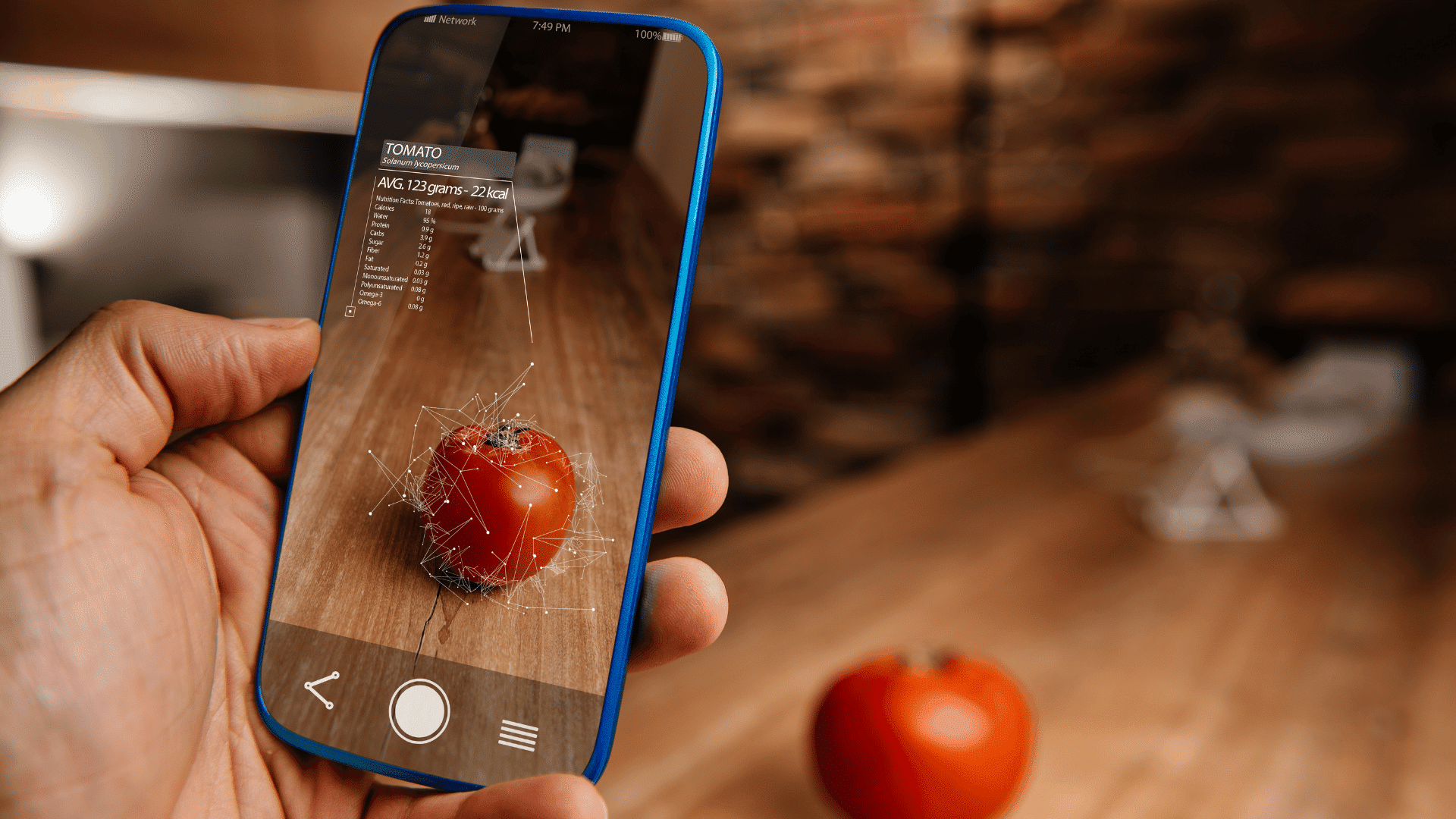



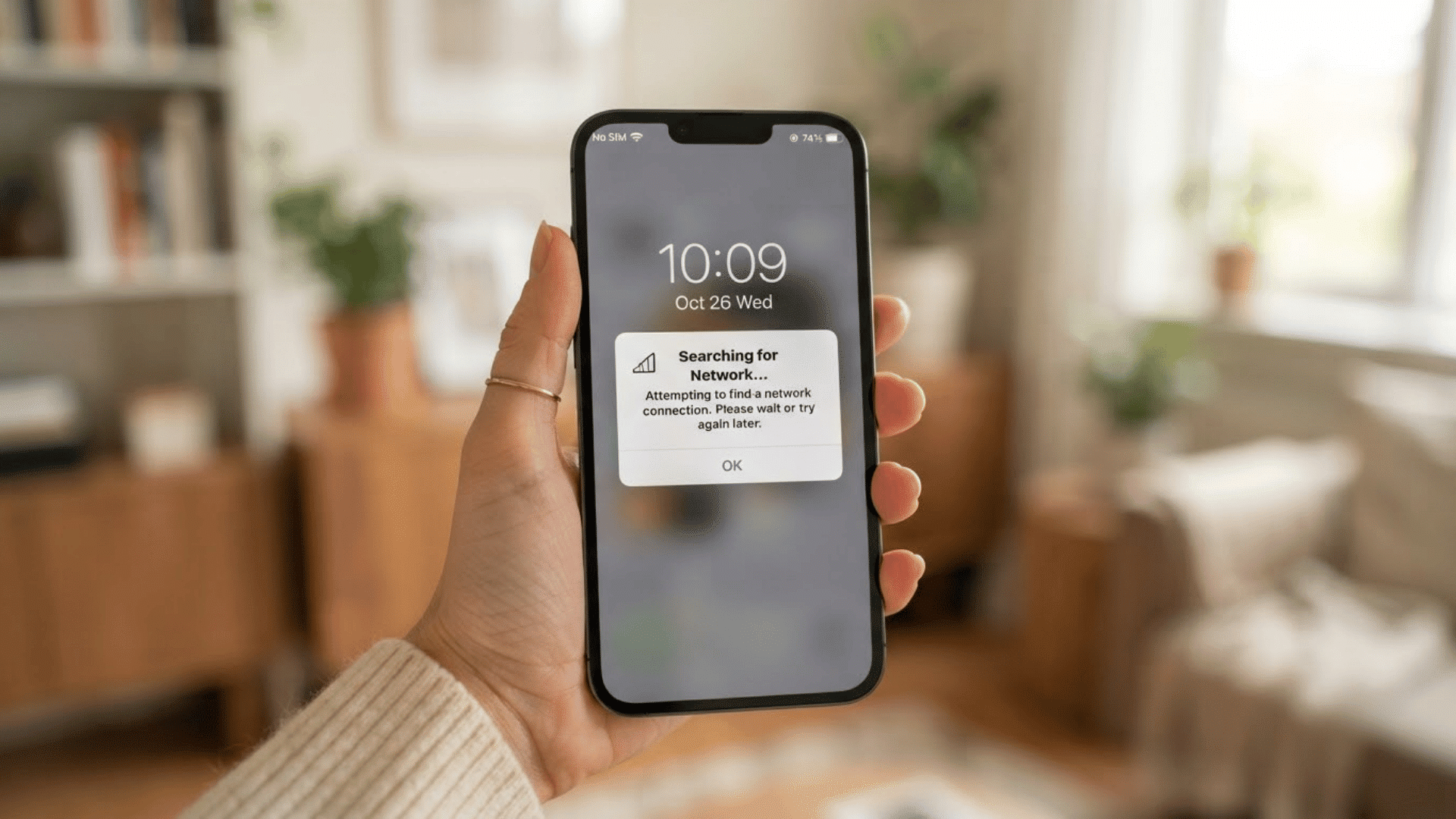
If you want to use augmented reality, the process is simple. Open an AR-supported app, allow camera access, scan you surroundings, and interact with the digital content that appears on your screen.
Augmented reality, or AR, adds digital objects, labels, directions, effects, or instructions to a live view of the real world. A phone or tablet is enough for many uses.
People use AR to preview furniture, try on products virtually, follow walking directions, view 3D learning models, and see instructions beside equipment.
The exact steps depend on the device and app, but the core process is similar. This article explains setup, use, common problems, privacy, safety, and when another tool may work better.
What is Augmented Reality?
Augmented reality, or AR, adds digital content to a view of the real world instead of completely replacing the surroundings.
A phone, tablet, or wearable display can show information while the physical environment remains visible.
AR may place different types of content on the screen, including:
- Text labels and instructions
- Direction arrows
- Images and animations
- 3D objects placed on real surfaces
Cameras and built-in sensors help the device understand position, movement, and nearby surfaces so digital elements appear in the intended location.
AR is one part of spatial computing, where a device reads the shape and position of physical space before responding to it.
How to Use Augmented Reality?
Decide what needs to appear, choose an AR experience that supports that task, and follow the setup prompts in order.
The steps below provide a practical starting process for most common AR experiences.
1. Decide What You Want AR to Do

Start by deciding what you want AR to help you do. A clear task makes it easier to choose the right app and understand what should appear on the screen.
You may want to preview furniture, follow walking directions, inspect a product model, practice a procedure, or view instructions beside equipment. Once the task is clear, choose an AR tool that supports it.
2. Open an AR App or Experience
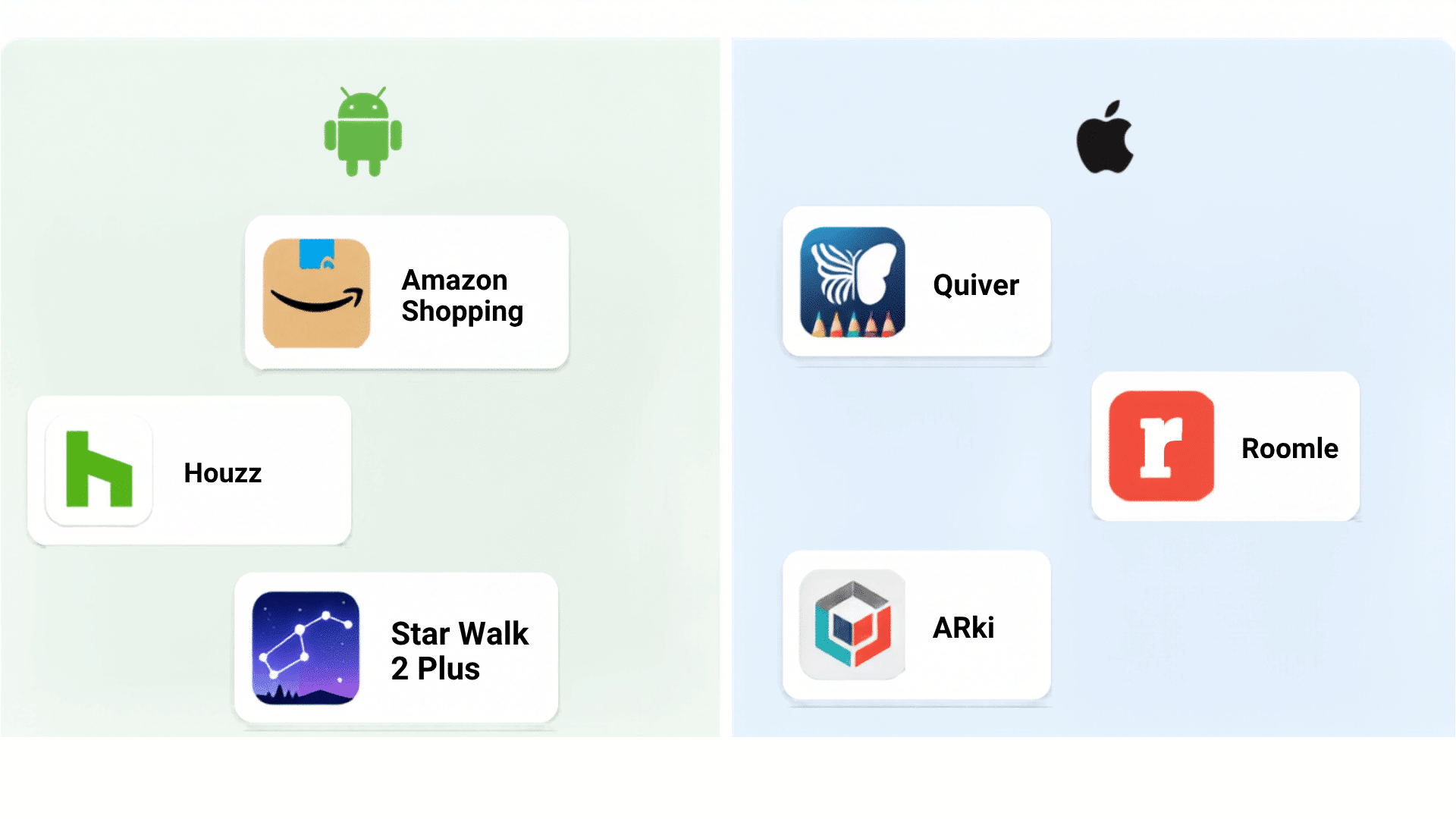
Next, open an AR app that supports your device and the task you want to complete. Apps to try:
- For Android: Try Amazon Shopping, Houzz, or Star Walk 2 Plus.
- For iOS: Options include Quiver, Roomle, and ARki.
Some AR experiences may also run through a supported browser or wearable device, so check the provider’s setup instructions before starting.
3. Allow Required Access
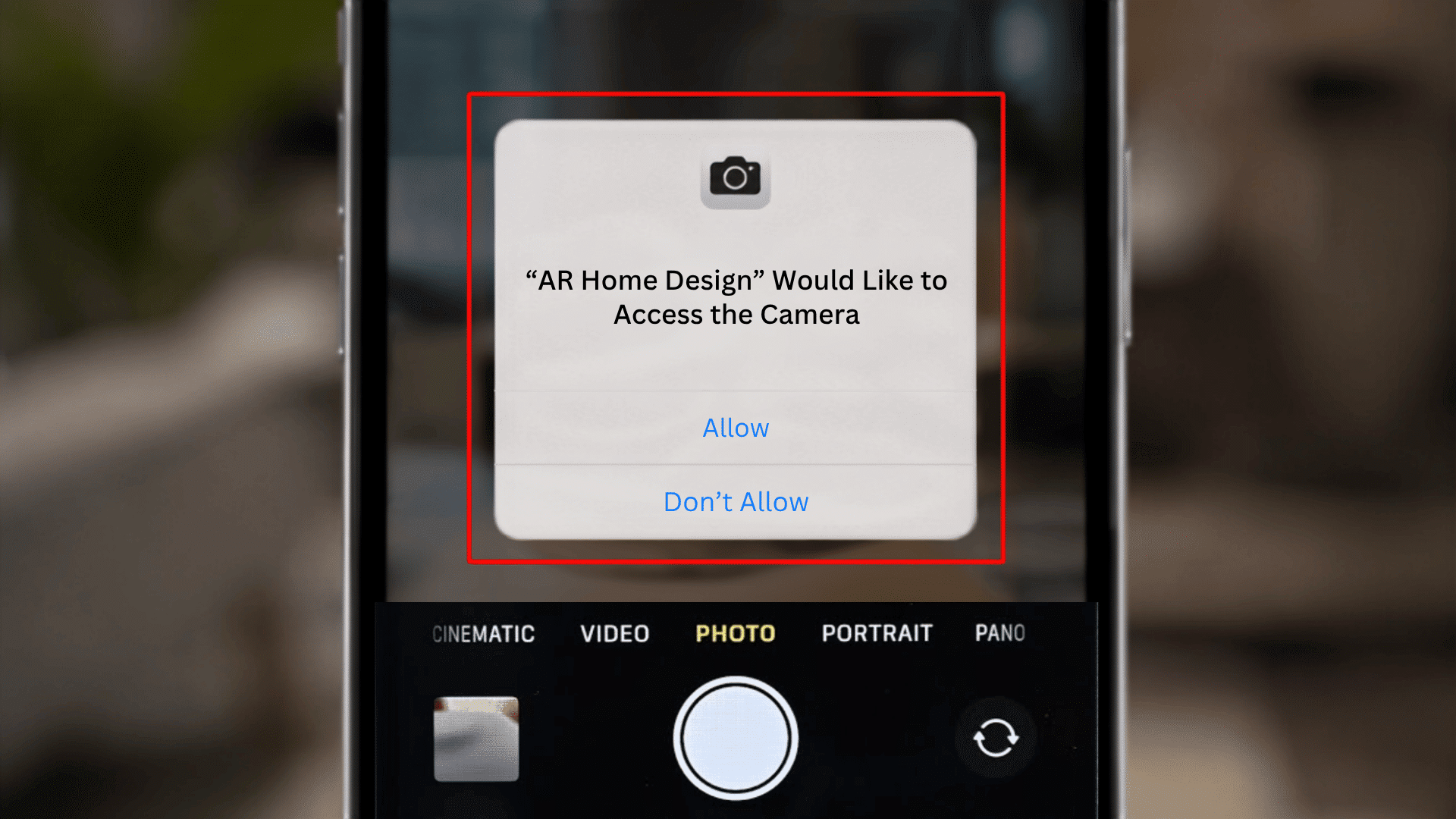
Grant only the permissions required for the AR feature you are using. Most AR apps need camera access to scan the surroundings and place digital content correctly.
Some apps may also request location access for maps, nearby places, or location-based features. Read each permission request before approving it and check why the app needs that access.
Once the required permissions are enabled, the AR experience can begin scanning the surrounding area.
4. Scan the Area
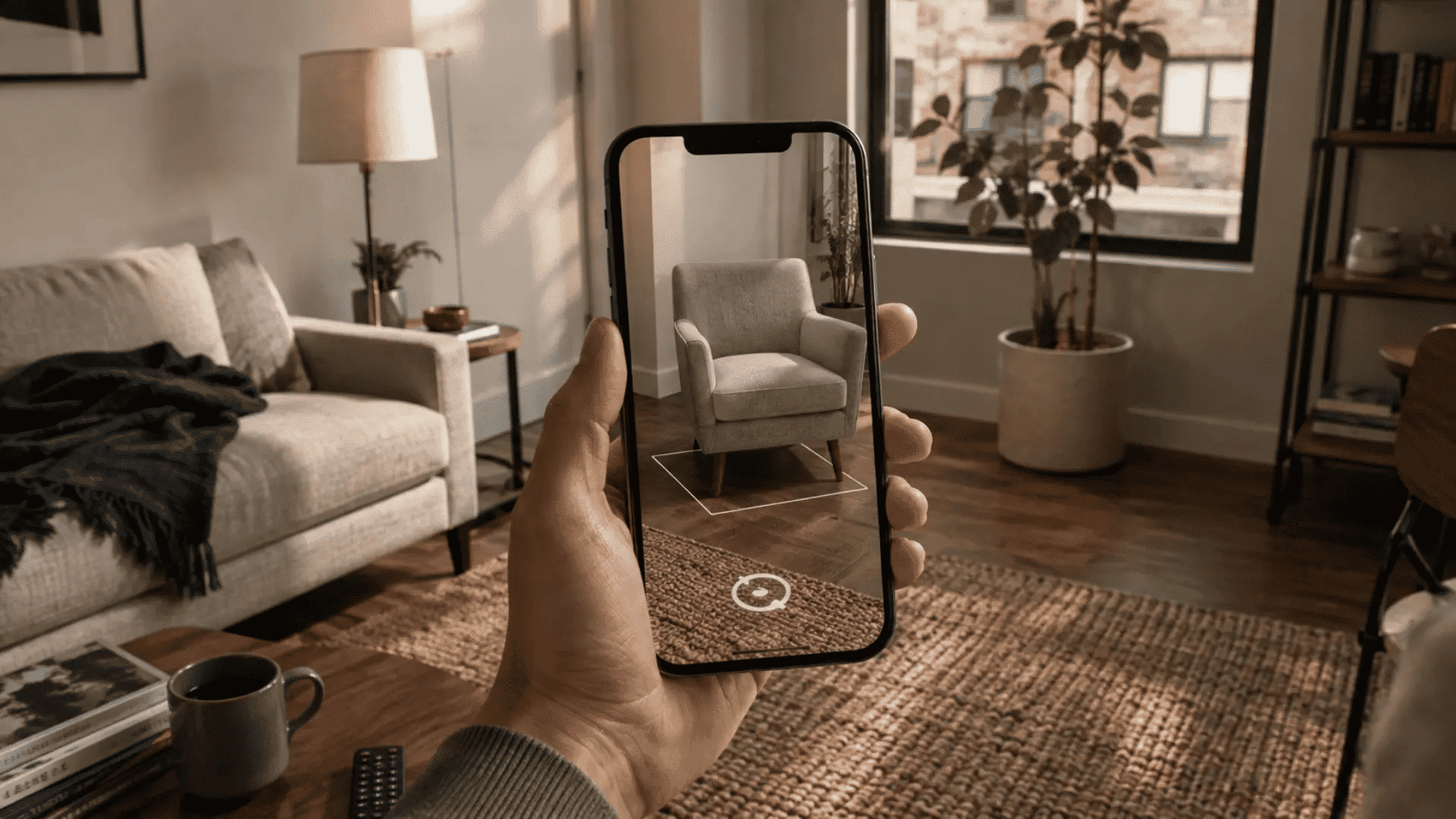
Follow the on-screen instructions for scanning the surroundings. Move the device slowly and steadily so its camera and sensors can identify surfaces, movement, and suitable positions for digital content.
Some applications may ask for a floor, wall, object, or wider area to remain visible during this process. Avoid quick camera movements while scanning.
If tracking appears unstable, repeat the scan rather than continuing with a weak setup.
5. Place and Check the Content
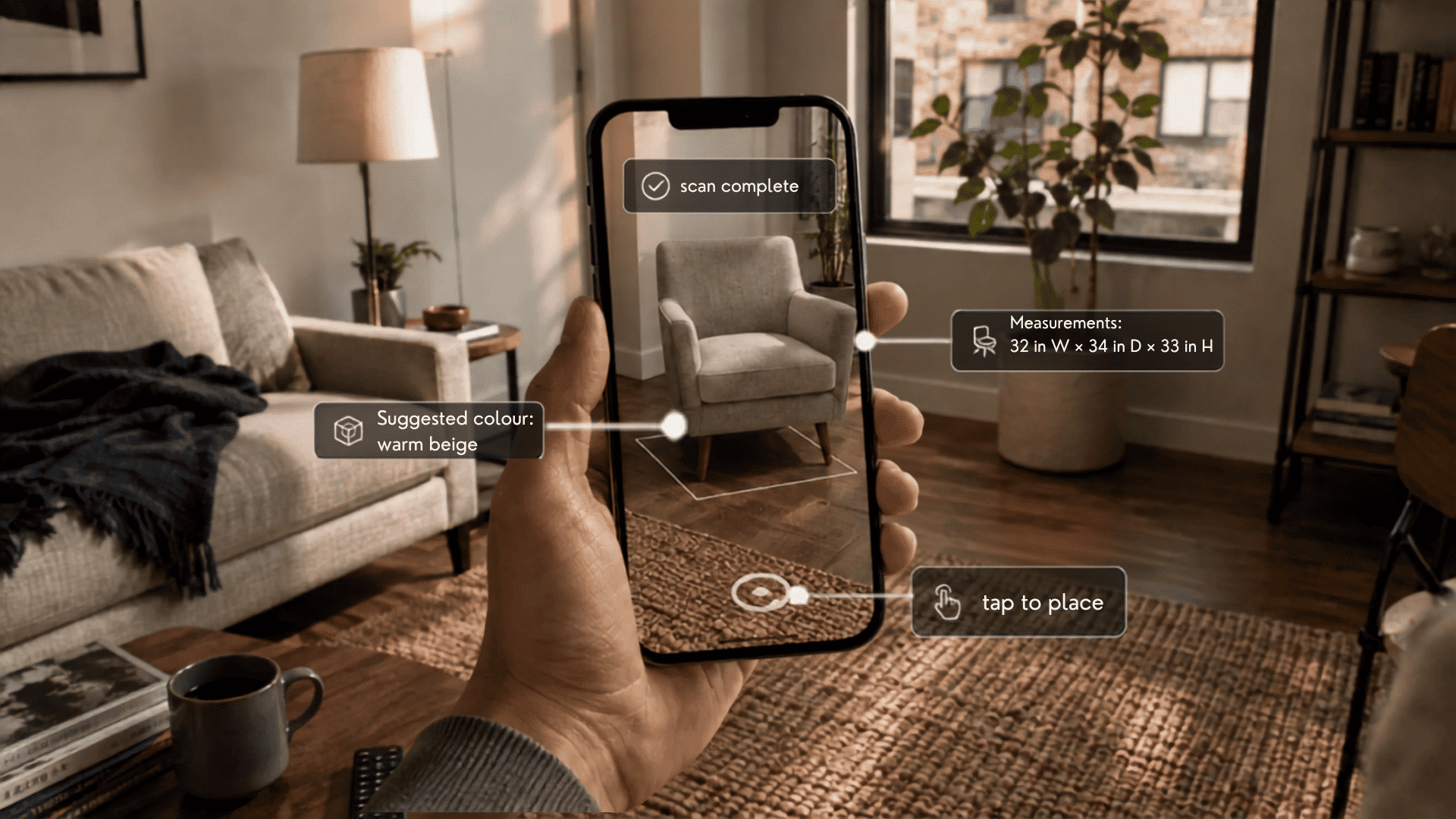
Once scanning is complete, use the available controls to place or adjust the digital content. You may be able to tap, move, resize, rotate, or follow on-screen instructions.
Check that the digital object appears in the correct position before relying on it.
For measurements or safety-related tasks, confirm important details with physical tools or approved instructions.
Everyday and Workplace Uses of AR
Augmented reality can support everyday tasks and workplace activities by placing digital information over the real world. It is commonly used to preview products, plan spaces, follow directions, learn procedures, and complete technical work.
| Use | How AR Helps | Key Check |
|---|---|---|
| Shopping | Preview products before buying | Confirm size, fit, and color |
| Home planning | Place furniture or decor virtually | Measure the real space |
| Navigation | Show arrows and location markers | Stay aware of surroundings |
| Training | Display models, labels, and guided steps | Use accurate, approved content |
| Maintenance | Show equipment instructions and component details | Follow workplace procedures |
| Remote support | Add visual guidance | Confirm each step clearly |
| Healthcare education | Visualize anatomy and procedures | Use qualified supervision |
AR is most useful when it improves understanding without replacing real-world checks or professional judgment.
How Much does AR Cost?
Cost is worth checking before you get too far into AR. Most AR features run on a phone or tablet you already own, so you don’t need to buy anything extra.
Free apps like Google Maps Live View and IKEA Kreativ cover shopping and getting directions at no added cost.
Specialized headsets and paid AR apps add cost only when a task needs extra tracking power or features.
Consumer AI glasses such as Meta’s current lineup start around $299. Models with an in-lens display run closer to $799. Enterprise-grade headsets cost more, with past models like the Microsoft HoloLens 2 priced near $3,500.
Custom AR built for a business works differently. Companies that commission AR for marketing or training usually pay a project-based quote instead of a flat price.
Tips to Get More Accurate and Stable AR Results
Small changes in scanning and movement can improve AR tracking and stability.
- Move the device slowly so the camera can recognize surfaces and maintain tracking.
- Use good lighting and avoid glare, reflections, or dark areas.
- Scan the full area, keeping floors, walls, tables, and useful surfaces visible.
- Keep the surroundings steady while scanning, since moving objects can disrupt placement.
- Follow calibration prompts and complete the movements the app requests.
- Rescan the area if digital objects begin drifting, jumping, or appearing in the wrong position.
- Verify sizes and distances with physical tools before making purchases or important decisions.
AR is useful for visualization, but it should not replace physical measurements when exact size or placement matters.
Popular Augmented Reality (AR) Apps to Try
AR is already built into apps for gaming, getting directions, shopping, education, design, beauty, and everyday utilities. Some apps focus entirely on AR, while others provide AR as one feature within a larger service.
Here are useful AR apps readers can try:
- Pokémon GO: Places Pokémon within real surroundings through its AR mode. Players interact with characters through their phone camera.
- Snapchat: Uses AR Lenses to place effects, characters, games, and interactive digital elements into live camera views.
- Google Maps: Live View places walking directions and location details over the real-world camera view. This works in supported locations and devices.
- IKEA Kreativ: Lets users scan rooms, digitally remove existing furniture, and place IKEA products in the space at scale.
- Warby Parker: Includes Virtual Try-On for viewing glasses and sunglasses on the face using a phone or computer.
- YouCam Makeup: Provides live virtual try-on tools for lipstick, foundation, eyeshadow, blush, eyeliner, hairstyles, and other beauty options.
- Google Arts & Culture: Uses AR to place artworks, historical objects, animals, architecture, and 3D cultural models in real surroundings.
- JigSpace: Presents products, equipment, and technical concepts as interactive 3D models. Users can view these within a physical space using AR.
- ARLOOPA: Supports marker-based, markerless, and location-based AR experiences, including placing 3D models within the camera view.
- Assemblr EDU: Designed for education, with interactive 3D and AR teaching materials covering subjects used by teachers and students.
- SkyView: Uses the camera and AR to identify stars, planets, constellations, satellites, and other objects in the sky.
- Apple Measure: Uses the iPhone camera to estimate dimensions of nearby objects and manually measure distances between selected points.
Note! AR features and availability can differ by device, operating system, region, and app version. Check compatibility before relying on a specific feature.
Before Granting AR Permissions, Protect Your Privacy
AR often needs access to the camera and, in some cases, location or motion data. Before granting permission, check what the feature needs and why it requires that access.
The camera may also capture people, documents, computer screens, home interiors, or workplace information in the background.
I recommend checking the surroundings before starting an AR session, especially in private or work-related spaces.
Review application permissions regularly and disable access you no longer need. Also limit location access when the AR feature doesn’t depend on geographic information.
Before using AR, check:
- Camera access: Confirm why it is required.
- Location access: Enable it only when needed. Turn off location services when not in use.
- Surroundings: Remove sensitive documents or screens from view.
- Other people: Avoid recording anyone without appropriate permission.
- Data handling: Review how captured information may be stored or processed.
When AR is Not the Best Choice?
AR can be useful for many tasks, but it is not always the safest or most accurate option.
Another method may be better when exact physical measurements are required, certified instructions must be followed, or camera use is restricted.
Poor lighting, frequently changing surroundings, or an inaccurate digital model can also reduce tracking reliability and make virtual placement less dependable.
Avoid relying on AR when looking at a screen could create a walking or traffic hazard.
It may also be unsuitable in places where private documents, computer screens, sensitive information, or other people could appear in the camera view.
Final Thoughts
So, how does AR work in practice? You choose a supported device, open an AR app, allow the needed permissions, scan your surroundings, and then interact with the digital content placed over the real world.
Once you understand those basic steps, the next move is to try AR for a specific purpose, such as previewing furniture, following directions, or viewing instructions beside an object.
I suggest starting with one simple, low-stakes task so you can learn how the controls, movement, and on-screen elements respond without overcomplicating things.
After that, you can explore more advanced AR tools or headsets if they suit your needs.
Tried an AR app already? Share your experience and what worked best for you so far.
Frequently Asked Questions
Can Augmented Reality Work with Printed Materials?
Yes. Some AR experiences recognize images, packaging, posters, or printed markers. These can trigger digital instructions, animations, product details, or interactive content.
Does Augmented Reality Use More Battery?
AR can increase battery use. The camera, sensors, screen, graphics processing, and location services often run together during a session.
Can Several People View the Same AR Content?
Some AR systems support shared experiences. Multiple users can view or interact with the same digital objects on compatible devices and software.
Can Augmented Reality be Used Outdoors?
Yes, although bright sunlight, reflective surfaces, changing surroundings, and GPS conditions may affect certain experiences. Learning how to use augmented reality outdoors also requires staying aware of surroundings.