



I’ve always liked the idea of getting more out of one computer instead of buying another device for different tasks.
At first, the process seemed more complicated than I expected, with unfamiliar terms and different setup methods making it hard to know where to start.
The more I looked into it, the more I realized that understanding the basics makes everything much easier.
Before making changes to your computer, it helps to know what you’re getting into and what to expect along the way. A little preparation can save time, prevent mistakes, and make the entire experience much smoother.
Quick Answer: What Is a Dual Boot?
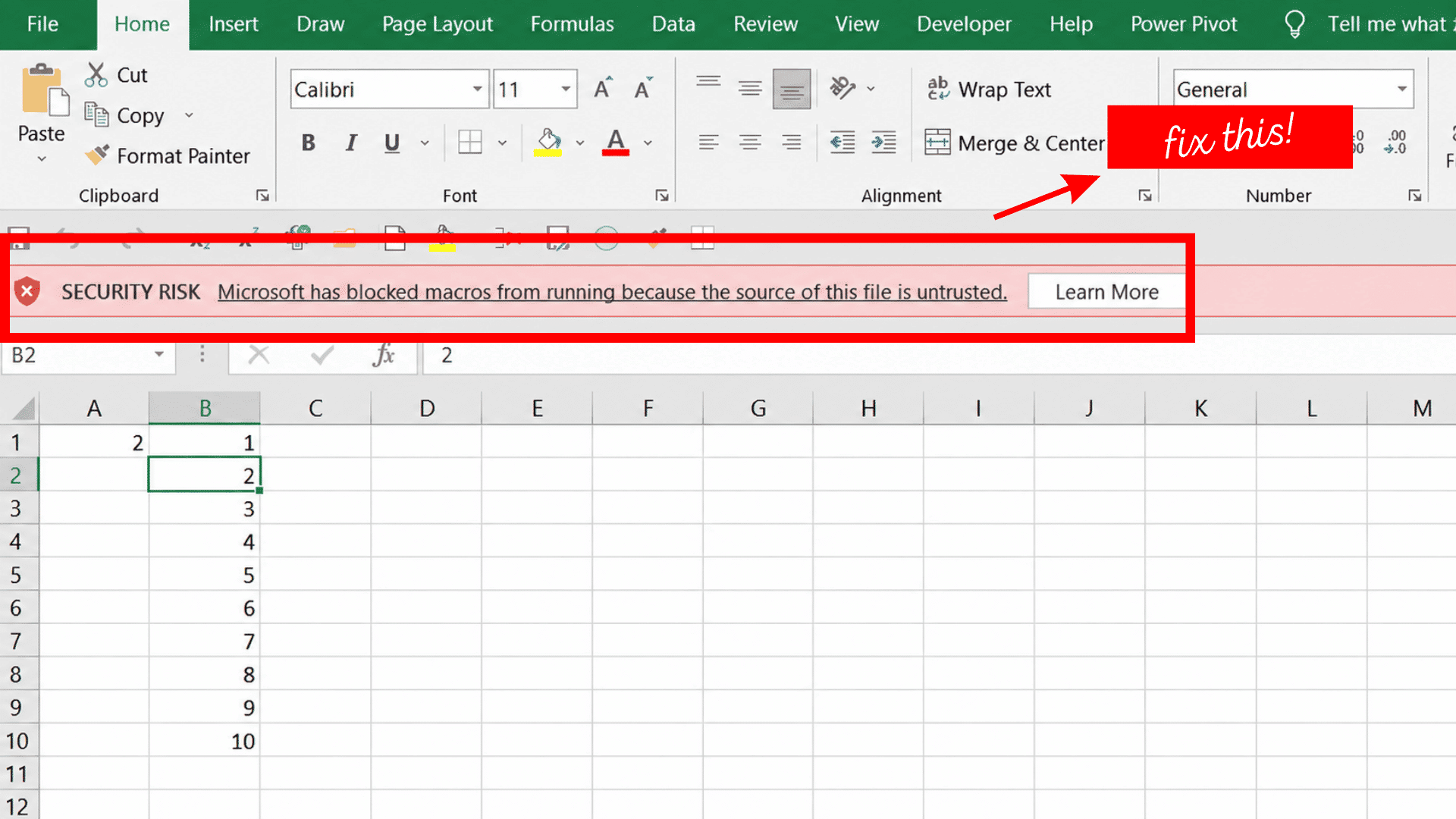
A dual boot lets one computer run two operating systems, allowing you to choose which one to start each time you turn it on. It is commonly used to install systems like Windows and Linux on the same device.
Each operating system is installed separately and runs independently, making dual boot useful for compatibility, testing, development, or using software available on only one platform.
It provides full performance because only one operating system runs at a time. However, setting it up requires creating separate disk partitions and installing each operating system correctly.
How Does a Dual Boot System Work?
A dual boot system works by installing two operating systems on separate partitions of the same storage drive. When the computer starts, a boot manager displays a menu that lets you choose which operating system to load.
- Separate Partitions: Each operating system is installed on its own disk partition, keeping system files and settings separate.
- Boot Manager: A boot manager appears during startup and lets you select the operating system you want to use.
- One System at a Time: Only the selected operating system loads, giving it full access to the computer’s hardware.
- Independent Operation: Each operating system has its own applications, files, and settings without affecting the other.
- Shared Storage (Optional): A separate data partition can be created to store files that both operating systems can access, depending on file system compatibility.
- Switching Systems: To use the other operating system, simply restart the computer and choose the other option from the boot menu.
How to Set Up a Windows and Linux Dual Boot System?
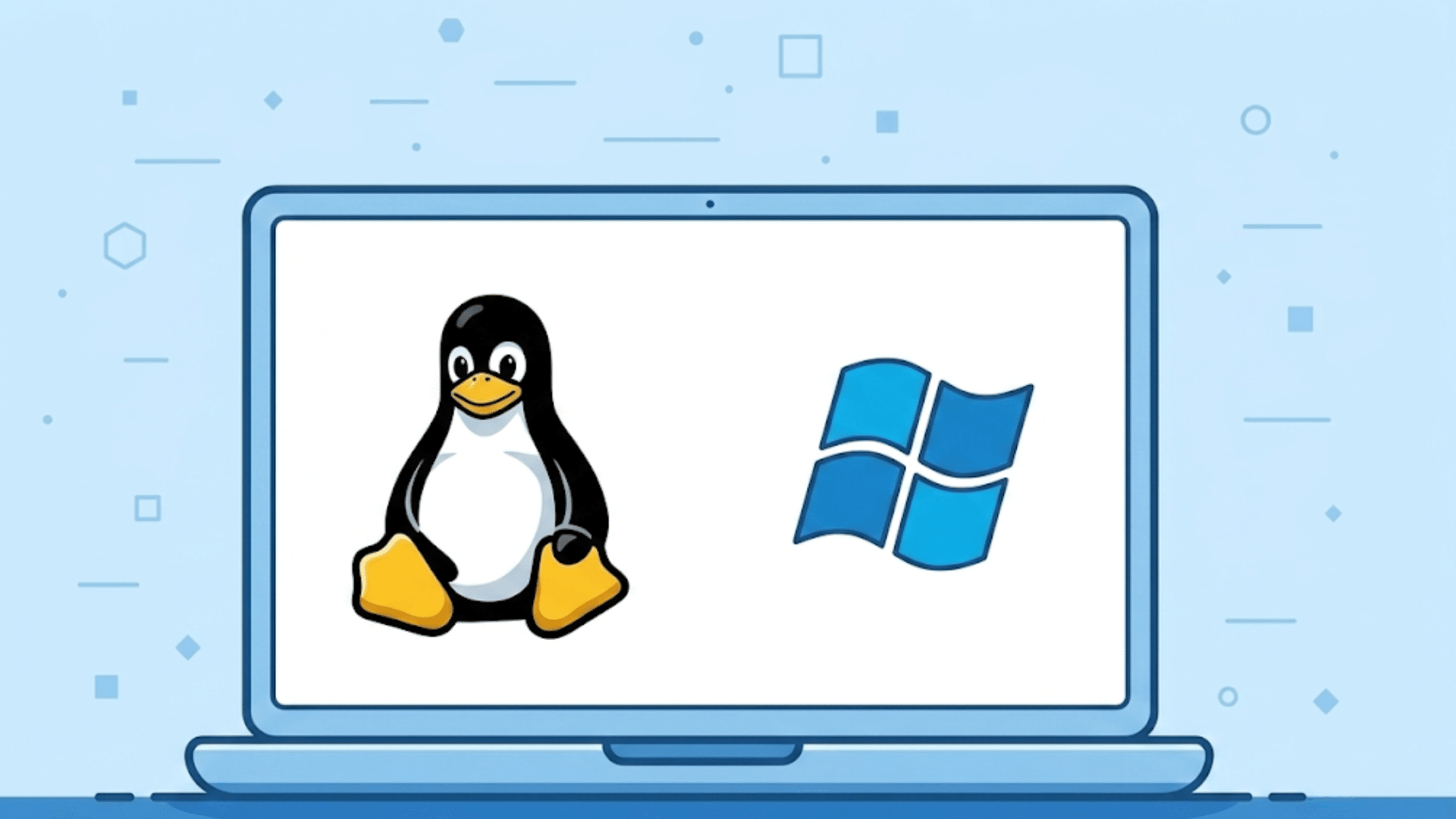
Setting up a Windows and Linux dual boot system is straightforward when you follow the correct sequence. Preparing your computer, installing Linux carefully, and configuring the boot manager will let you switch between both operating systems whenever you start your PC.
Step 1: Back Up Your Important Data
Before making any changes to your computer, back up important files to an external drive or cloud storage.
Installing a second operating system involves modifying disk partitions, and unexpected errors could result in data loss.
Having a recent backup, whether on an external drive or through cloud storage options built for backing up photos and files, ensures your documents and other valuable files remain safe if something goes wrong during the installation process.
Step 2: Create Free Space for Linux
Open Windows Disk Management and shrink your existing Windows partition to create unallocated space for Linux.
The amount of space depends on your needs, but at least 25–50 GB is recommended for most users. Do not create a new partition manually unless your Linux installation guide specifically instructs you to do so.
Step 3: Create a Bootable Linux USB
Download the ISO file for your preferred Linux distribution, such as Ubuntu, Fedora, or Linux Mint. Then, use software like Rufus or Balena Etcher to create a bootable USB drive.
This USB contains the installation files needed to install Linux and allows your computer to start the installer instead of Windows.
Step 4: Boot From the USB Drive
Restart your computer and enter the boot menu or BIOS/UEFI settings by pressing the appropriate key during startup. Select the bootable USB drive as the startup device.
Your computer will load the Linux installation environment, where you can test the operating system or begin the installation process.
Step 5: Install Linux Alongside Windows
Start the Linux installer and choose the option to install Linux alongside Windows if it is available. If not, manually select the unallocated disk space you created earlier.
Follow the installation prompts carefully to avoid modifying or deleting the Windows partition during the setup process.
Step 6: Install the GRUB Boot Manager
During installation, Linux automatically installs the GRUB boot manager in most cases.
GRUB detects your Windows installation and creates a startup menu that appears every time you turn on the computer.
This menu lets you choose which operating system you want to use before the system starts.
Step 7: Restart and Test Both Operating Systems
Once the installation is complete, restart your computer and confirm that the GRUB menu appears.
Select Windows first to ensure it still starts normally, then reboot and choose Linux.
Testing both operating systems verifies that the dual boot setup works correctly and that each system runs independently
What Are the Requirements for a Dual Boot Setup?
A dual boot system needs proper hardware support and preparation before installation. Checking these requirements helps create a smoother setup process.
- Storage Space: Keep enough free storage for the second operating system, updates, applications, and personal files.
- RAM Capacity: Make sure your computer has enough memory to run both operating systems comfortably.
- Processor Support: Check that your processor supports the operating systems you want to install.
- UEFI or BIOS Settings: Review firmware settings to confirm your computer can boot from the installation media.
- Backup Files: Save important documents, photos, and other data before changing disk partitions.
- Bootable USB Drive: Prepare a USB drive containing the operating system installer.
Pros and Cons of Dual Booting
Dual booting allows you to install and use two operating systems on the same computer, making it easier to access different software and workflows.
| Pros | Cons |
|---|---|
| Run each operating system at full hardware performance. | Requires additional storage space for both operating systems. |
| Use Windows and Linux on the same computer. | You must restart the computer to switch operating systems. |
| Access software that is available only on a specific operating system. | The installation process can be difficult for beginners. |
| Learn, practice, or test another operating system without replacing your current one. | Incorrect setup may cause boot or startup issues. |
Who Should Use a Dual Boot System?
A dual boot system is ideal for users who regularly need two operating systems on the same computer.
It is commonly used by developers who build and test software across Windows and Linux, students learning Linux while keeping Windows for everyday tasks, and IT professionals who troubleshoot or manage different operating system environments.
Gamers may also benefit by using Windows for games and Linux for programming or general use.
Content creators and technology enthusiasts can take advantage of operating system-specific applications while enjoying full hardware performance without buying a second computer.
Chromebook owners who just want occasional access to Linux tools are usually better served by the built-in Linux environment available on most Chrome OS devices, which skips partitioning entirely.
Dual Boot vs. Virtual Machine vs. WSL: Which Should You Choose?
Choose dual boot if you need full hardware performance, a virtual machine if you want to run another operating system without restarting, and WSL if you mainly need Linux tools inside Windows.
| Feature | Dual Boot | Virtual Machine (VM) | Windows Subsystem for Linux (WSL) |
|---|---|---|---|
| Performance | Full hardware performance | Shares hardware with the host OS | Near-native performance for Linux tools |
| Operating Systems | Two separate operating systems | One operating system runs inside another | Linux environment runs within Windows |
| Restart Required | Yes | No | No |
| Storage Usage | High | Moderate to high | Low to moderate |
| Best For | Gaming, development, full Linux experience | Testing software, running multiple systems together | Development, scripting, command-line tools |
| Ease of Setup | Moderate | Easy to moderate | Easy |
| Access to Hardware | Full access | Limited by virtualization | Limited compared to dual boot |
| Ideal Choice | Users needing maximum performance | Users who frequently switch between operating systems | Windows users who need Linux without leaving Windows |
Is Dual Boot Safe for Your Computer?
A dual boot setup is generally safe when installed correctly. Adding another operating system does not harm your computer’s hardware because both systems use the same physical components separately.
The main concerns are related to software settings, storage changes, and accidental data loss during installation.
Before setting up dual boot, create a backup of important files, download operating systems only from official sources, and avoid deleting partitions unless you understand their purpose.
Check storage selections carefully during installation and keep recovery options available.
Most problems occur because of incorrect partition changes or boot settings, but proper preparation can help prevent startup issues and protect your data.
Common Dual Boot Problems and Fixes
Most dual boot issues are caused by configuration or installation settings rather than hardware problems. Identifying the cause early can help you fix the issue without reinstalling your operating systems.
| Problem | Fix |
|---|---|
| GRUB Menu Missing After a Windows Update | Reinstall the GRUB bootloader using a Linux live USB or a Boot-Repair tool to restore the startup menu. |
| Incorrect System Time | Configure Windows and Linux to use the same hardware clock setting to keep the time synchronized. |
| Linux Installer Doesn’t Detect Free Space | Shrink the Windows partition again and verify that unallocated space is available before starting the installation. |
| Secure Boot Prevents Installation | Temporarily disable Secure Boot in the UEFI settings, then enable it again if your Linux distribution supports it. |
Conclusion
After learning about dual booting, I realized it’s one of the most practical ways to enjoy the benefits of two operating systems without buying another computer.
If we take the time to prepare our system, back up important files, and follow the installation steps carefully, the setup can be both reliable and rewarding.
I like that it gives me the freedom to use the right operating system for different tasks while getting full hardware performance from each.
Before making any changes, make sure the setup matches your needs and comfort level.
Have you tried dual booting, or are you planning to? Share your experience, tips, or questions in the comments below.
Frequently Asked Questions
How Do I Know If My PC Is Dual Boot?
Your PC is dual-boot if a boot menu appears at startup asking you to choose between two operating systems.
Does Dual Boot Delete Files?
No, dual booting does not delete files when installed correctly, but backing up your data before setup is recommended.
What Is the Difference Between Booting and Dual Booting?
Booting starts a single operating system, while dual booting lets you choose between two installed operating systems during startup.